Load Database
Pandat can load TDB, RTDB, and PDB (encrypted TDB) database files. TDB files are open-source databases. Users can view both the phase models and the parameters for each phase. RTDB files are encrypted TDB files that can be used with the Pandat Education version. Some RTDB files are included in the Pandat Example folder. Users can load and use these databases and view the phase names and models through the TDB Viewer, but the parameter values are not accessible. are encrypted TDB files that can be used with the Pandat Education version. Some RTDB files are included in the Pandat Example folder. Users can load and use these databases and view the phase names and models through the TDB Viewer, but the parameter values are not accessible. PDB files are encrypted commercial databases. A valid license is required to use them. With a proper license, users can view the phase models through the TDB Viewer, but the parameter values remain hidden.
Databases can be loaded either by clicking the toolbar icon  or through the menu: "Database → Load TDB or RTDB/PDB (Encrypted TDB)" as shown in Figure 3.2. To load a database, select the file from your hard drive and click Open, or simply double-click the database file. Database files can be stored in any directory on your computer.
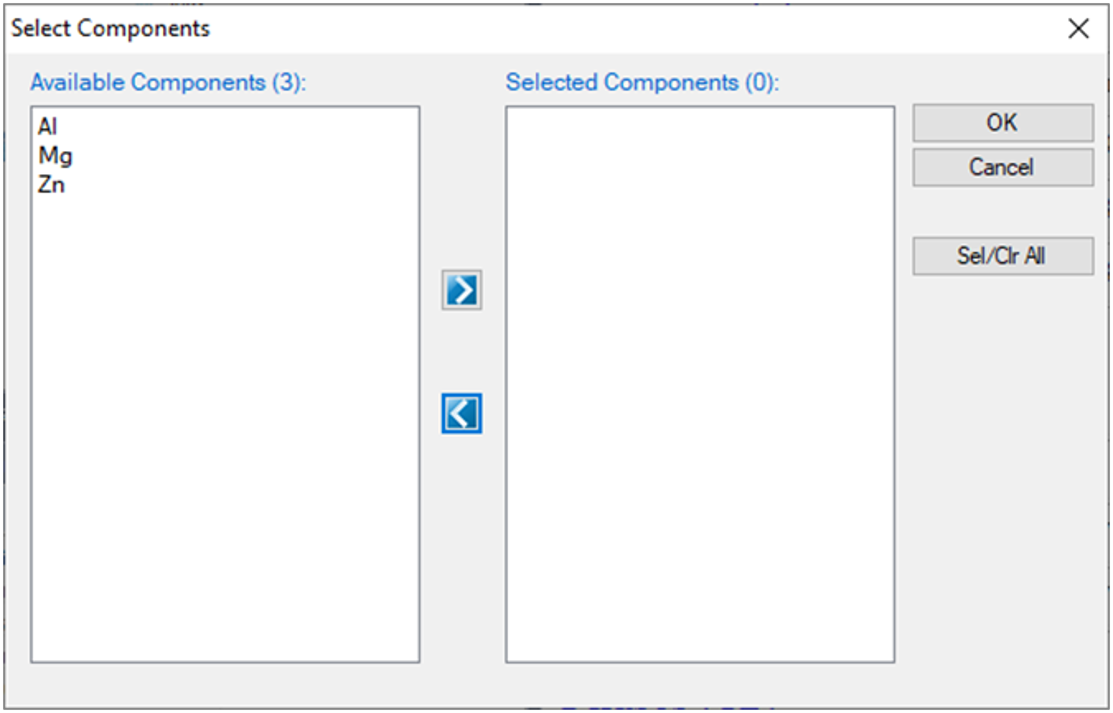
When a database is successfully loaded, a popup window shown in Figure 3.3 will ask the user to select the components for subsequent calculations. To add a component to the list of selected components, click on the component on the list of Available Components on the left column, and click on the  button to send them to the Selected Components on the right column. To select several components at one time, hold the Ctrl key and use mouse to select multiple components. To remove a component from selected components list, use mouse to select it, and click the
  button.
When you want to change components during the calculations, or if the database has already loaded in the system, this window does not popup after load the tdb or pdb, click the menu “Databases → Select Components”, this window will popup for component selection.
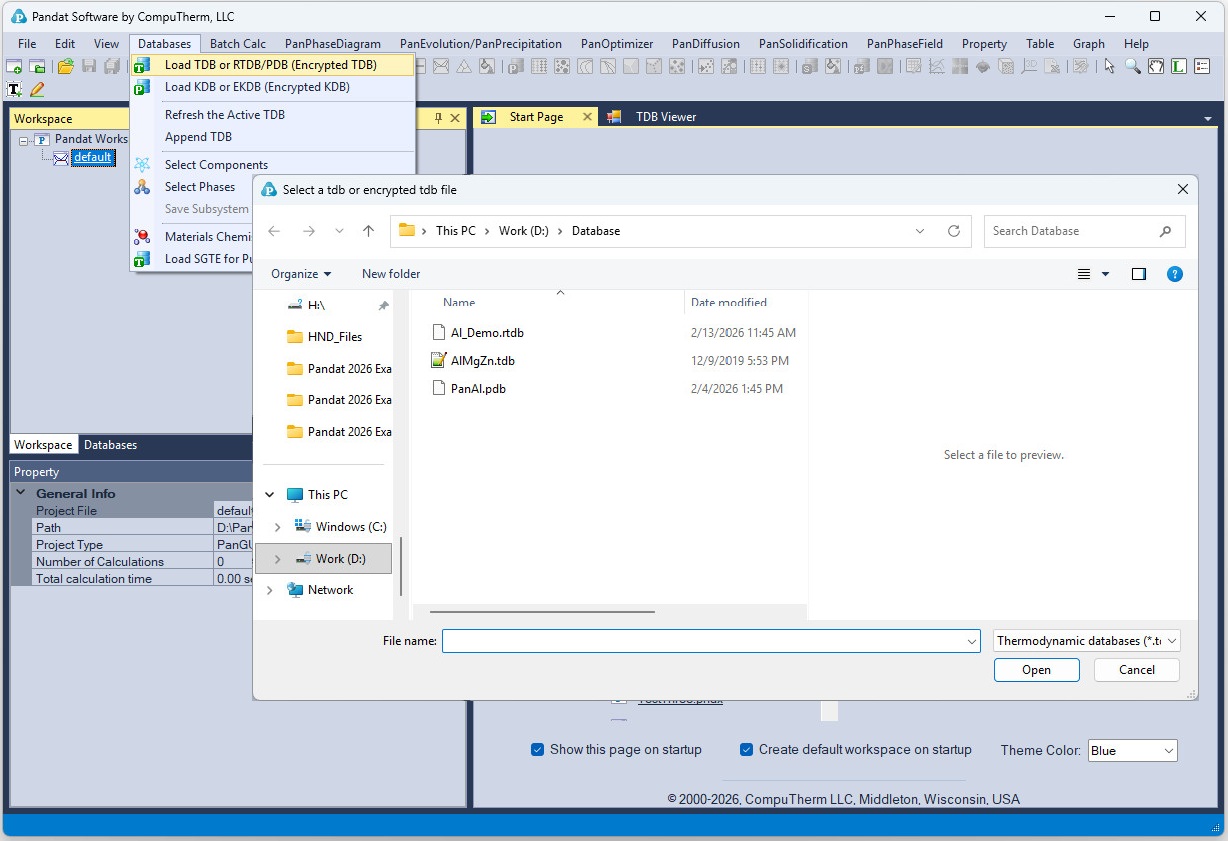
Figure 3.2: Load a database from hard drive through Menu